Getting Started#
This is your window into Theia. Please take a moment to familiarize yourself with some of the initial tools you will use to navigate your way around.
User Interface#
Zoom#

|
Using these buttons in the top left corner or the scroll wheel on your mouse, you can zoom in and out of your preferred Area of Interest (AOI). |
Workspace#

|
Once you have selected a vessel of interest, this will populate with more options (please see Workspace instructions here). |
Coordinates#

|
Hover the cursor over the map to view that location’s latitude and longitude (lat long). |
Drop point#

|
Select this and enter a specific lat long, which drops a point at the desired location. |
Measure#

|
Select this to measure distances, dimensions, or anything of interest. |
Polygon#

|
Select this to draw a polygon around a specific AOI. |
Rectangle#

|
Click and drag to highlight an AOI for Automatic Identification Systems (AIS) analysis. |
Circle#

|
Click and drag to measure an area from a specific Point of Interest (POI). |
Delete#

|
Select this to remove any overlays or measurements you have used. |
Polyline Measure#

|
Select this and click on the map to reveal distances and headings between points you choose. |
Clear measurements#

|
Removes all polyline measurements that have been created. |
Change measurements#

|
Rotates through meters (m), miles (mi), and nautical miles (nm), depending on the required output. |
Overview Toggle#
Toggle Satellite or Mapping overview#

|
Toggles between satellite or mapping overview |
Light Map#

|
Provides a light mapping overview of the globe. |
Dark Map#

|
Provides a dark mapping overview of the globe. |
Satellite#

|
Provides a satellite imagery overview of the globe. |
Navigation Bar#
Search bar#

|
Locate a vessel of interest using a ship name, International Maritime Organization (IMO) number, or Maritime Mobile Service Identities (MMSI) number. |
Refresh live view#
|
Theia updates the AIS of vessels on a 15-minute basis, so if you have been analyzing old time periods, use this for the latest information. |
Data manager date#

|
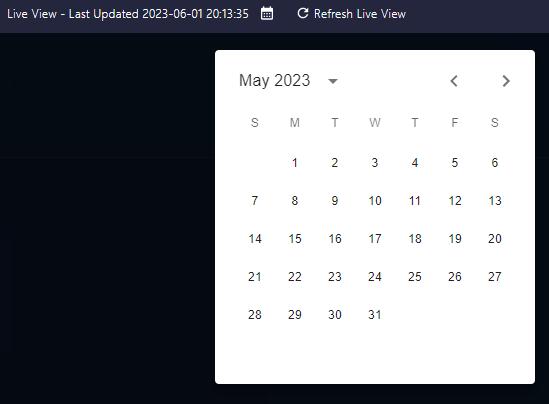
Rewind time with Theia and click to select a past date and time to analyze. |
Documentation#
|
Provides access to the readme guide. |
Actions#

|
Allows users to upload their own GEOJSON or CSV files to Theia. |
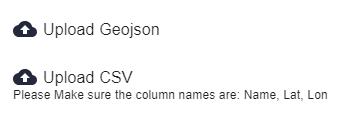
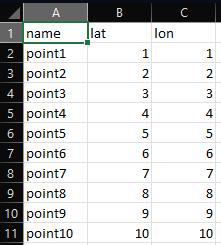
Naming convention for a CSV file so that it loads correctly:
Account#

|
Use this to log out of Theia. |
Layers#

|
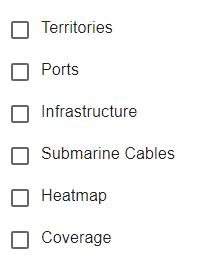
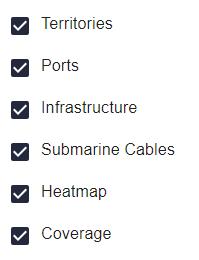
Various layers within Theia can be toggled on and off with the tick boxes. |
|
|
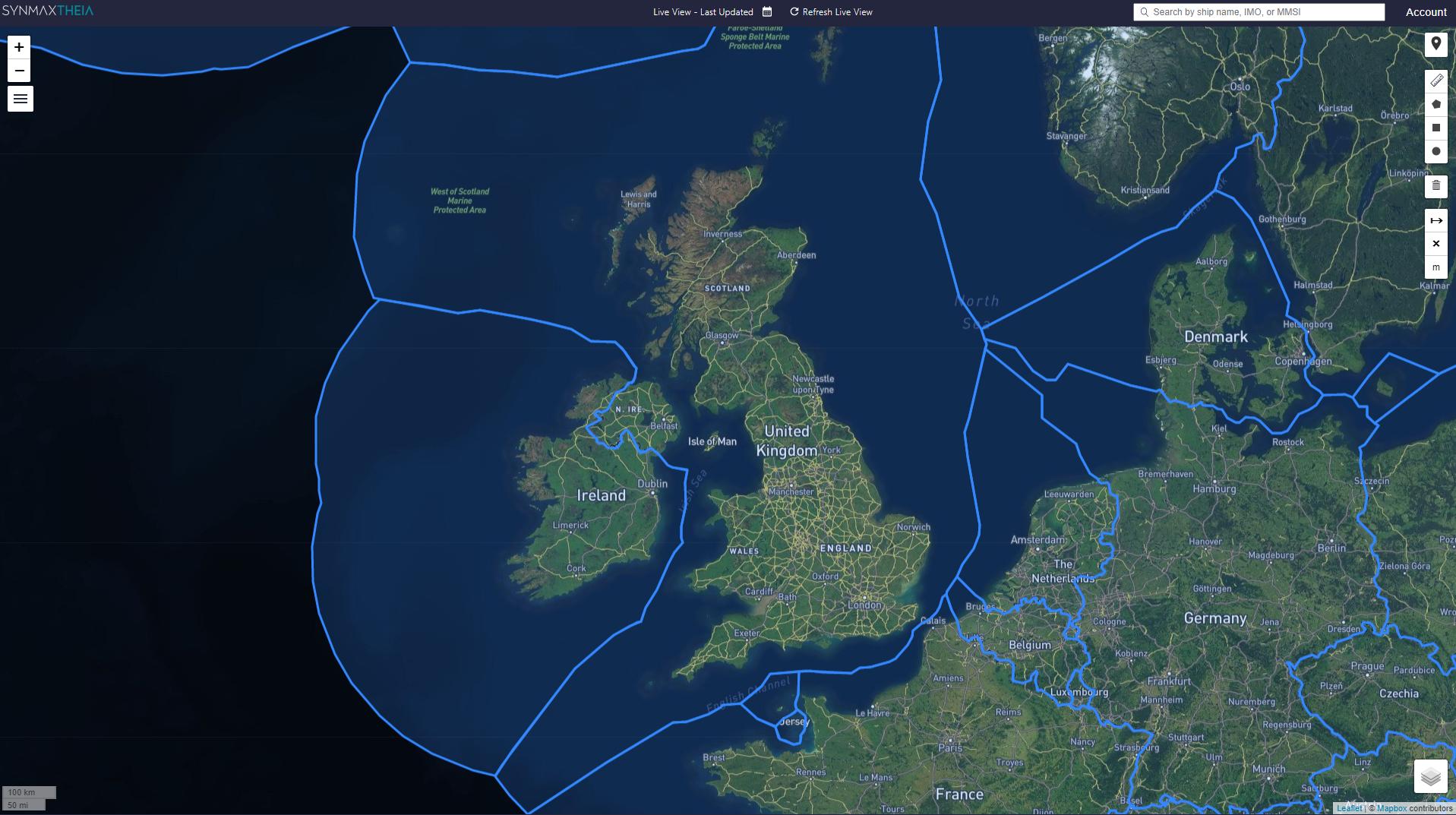
Territories#
Borders and territorial waters of individual countries.
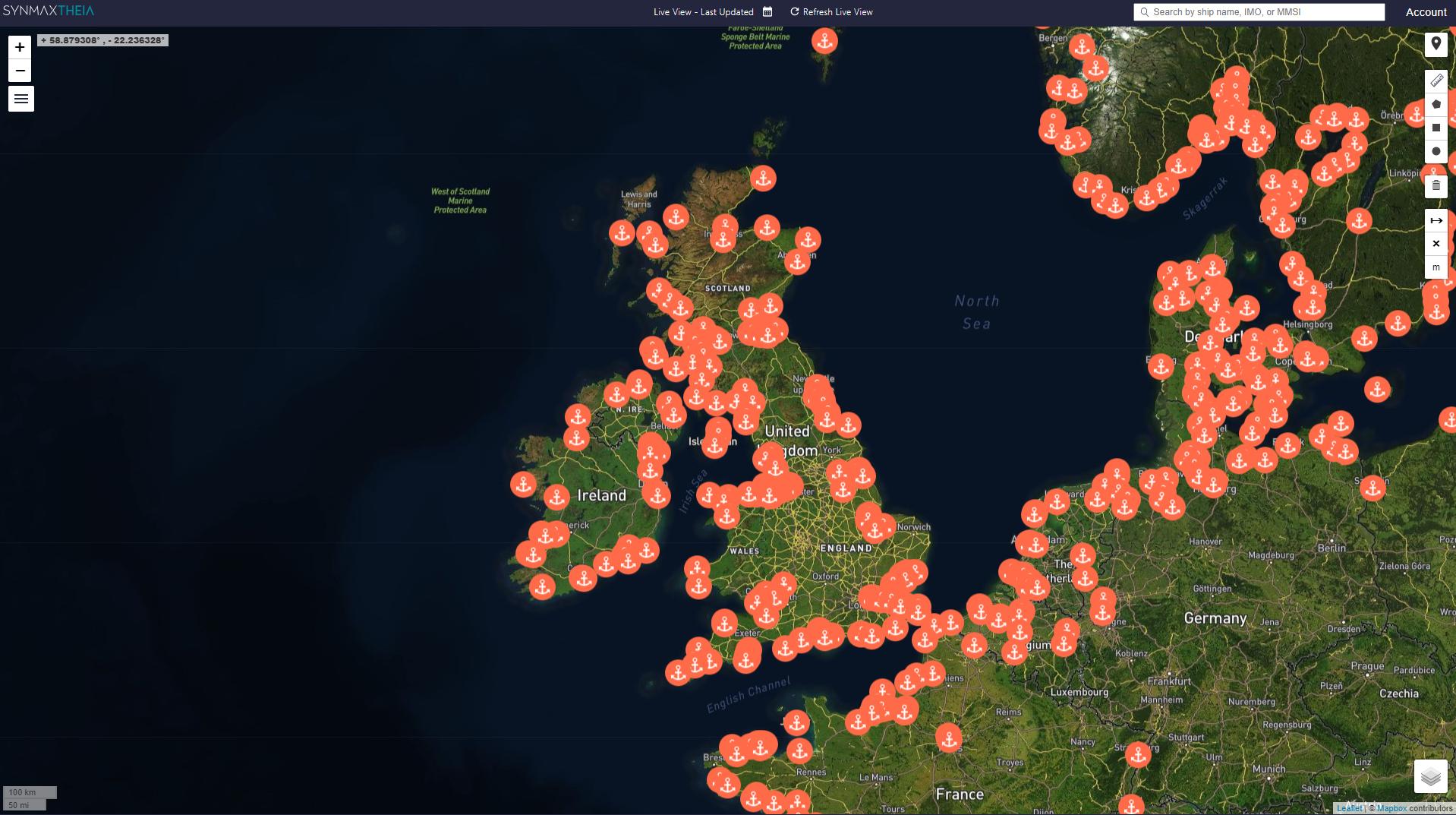
Ports#

|
Locations of ports. |
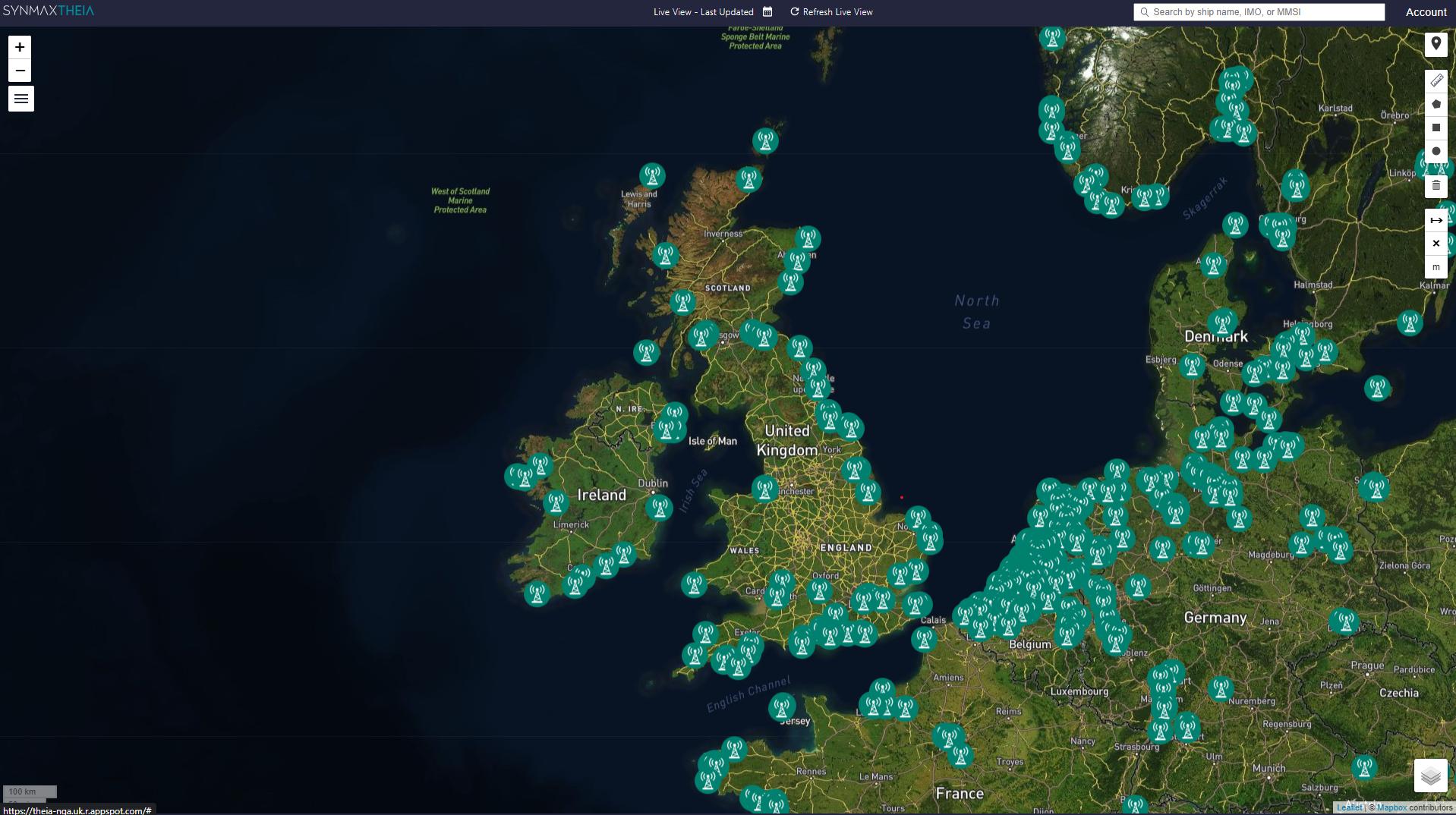
Infrastructure#

|
Locations of AIS stations. |
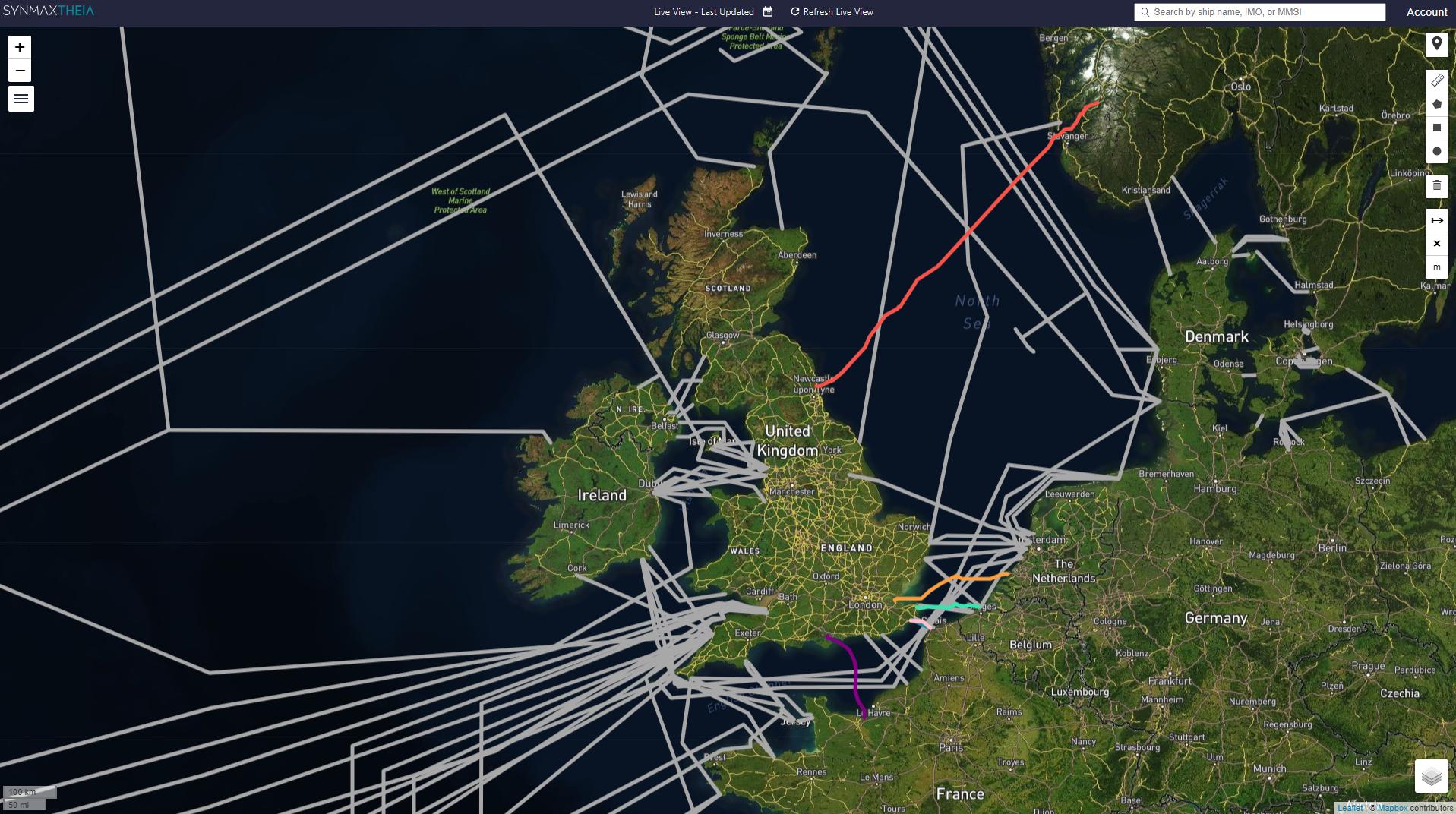
Submarine Cables#
Locations of subsea cables.
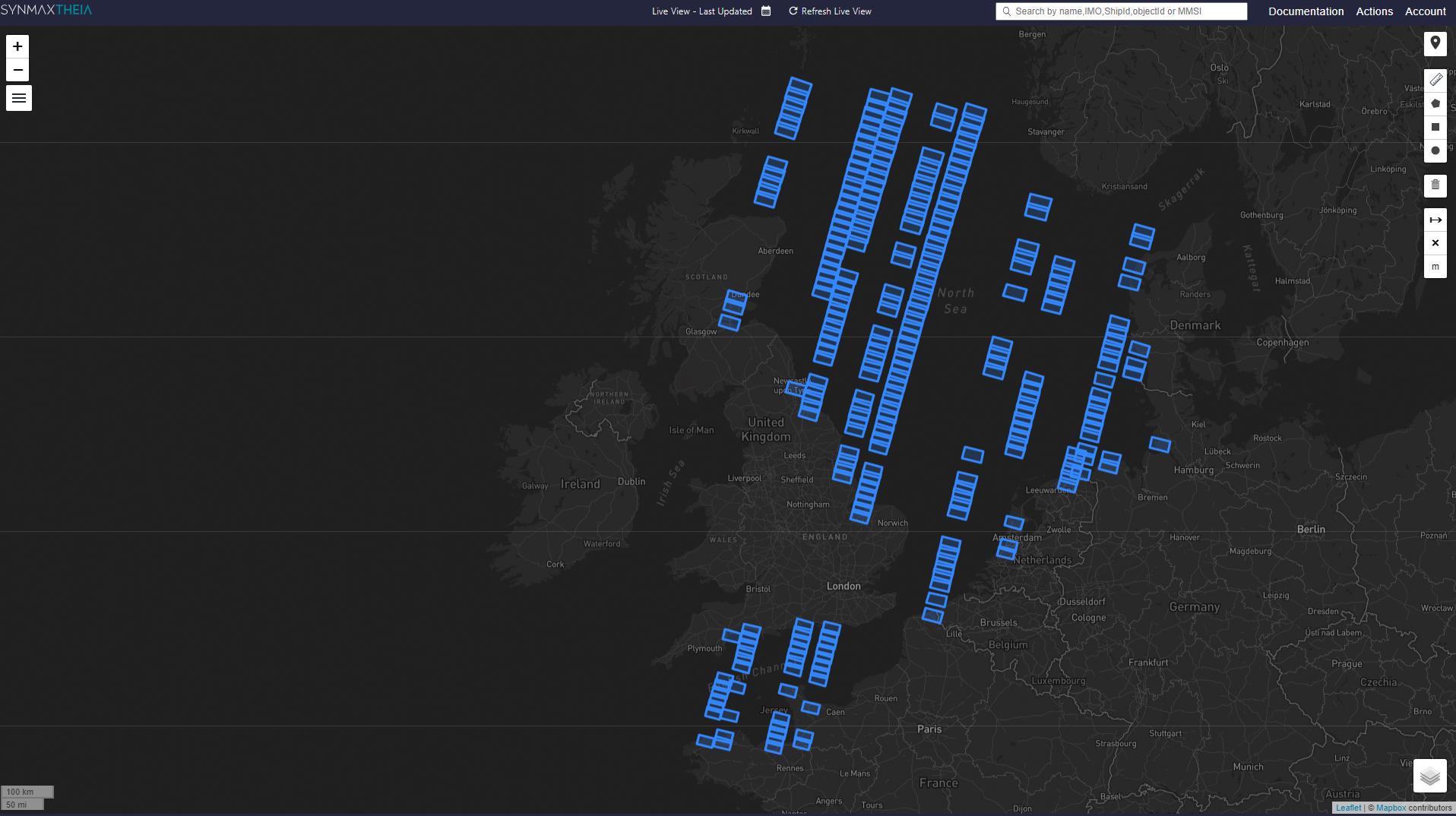
Coverage#
Shows a footprint of all satellite imagery that Theia has ingested and used for each individual day.
Zoom Levels#
Scale bar#

|
View this adaptive scale bar for a quick idea of the scale you’re at; particularly helpful when zoomed in over the water. |
Zoom Examples#
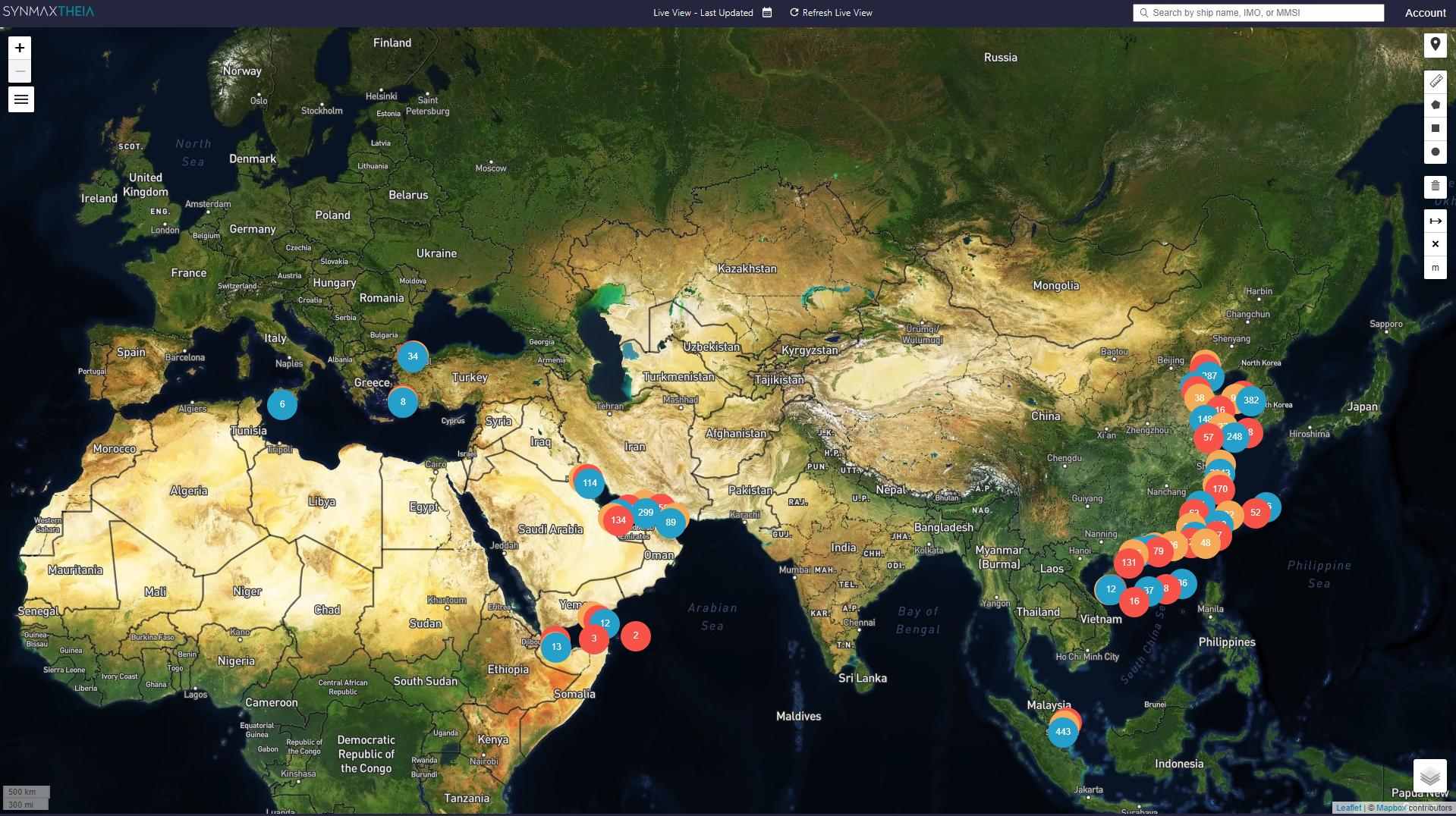
Overview Zoom Level - Clusters of Light, Dark, and Unattributed vessels are visible.
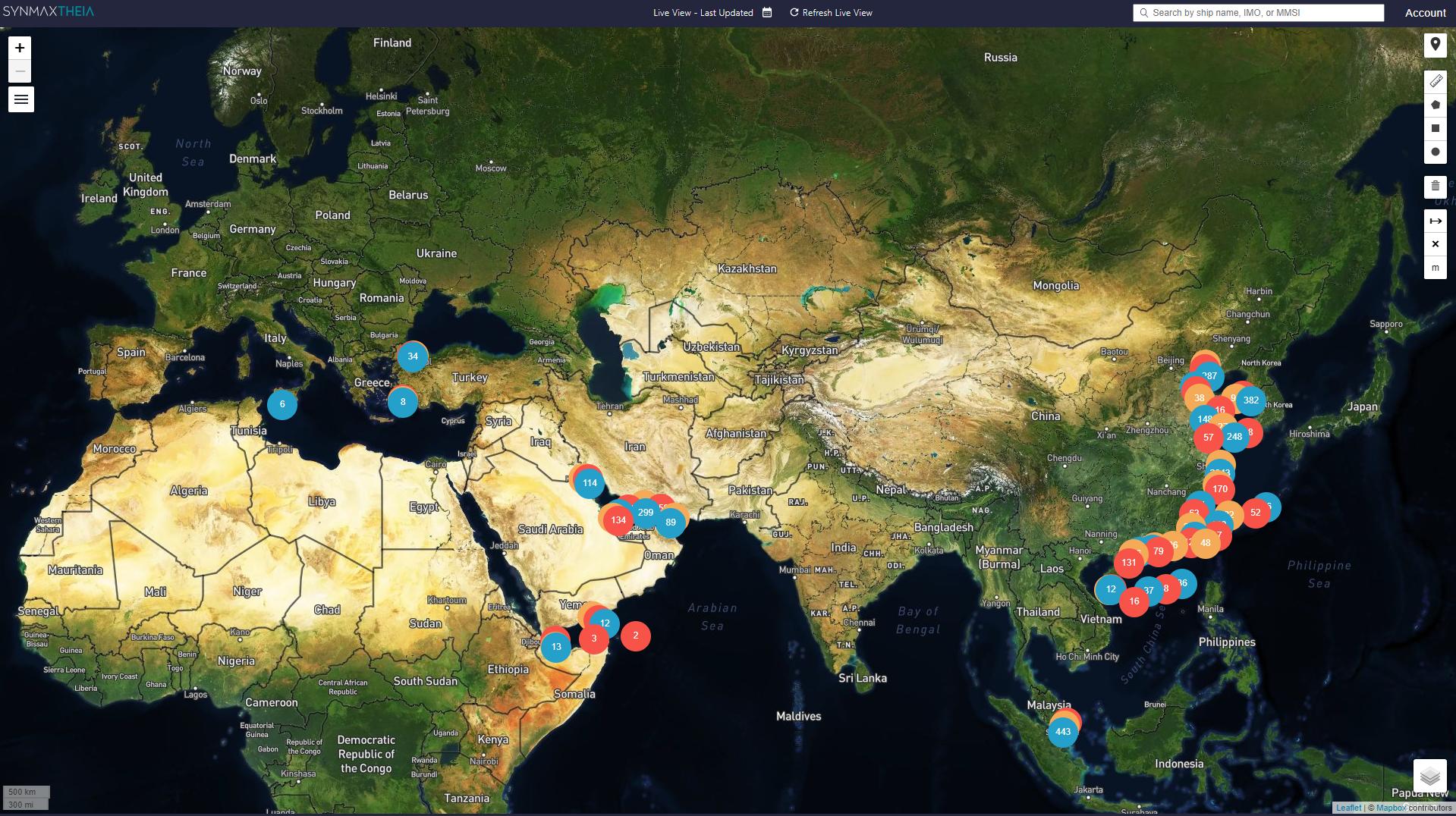
Medium Zoom Level - Clusters of Light, Dark, and Unattributed vessels are visible.
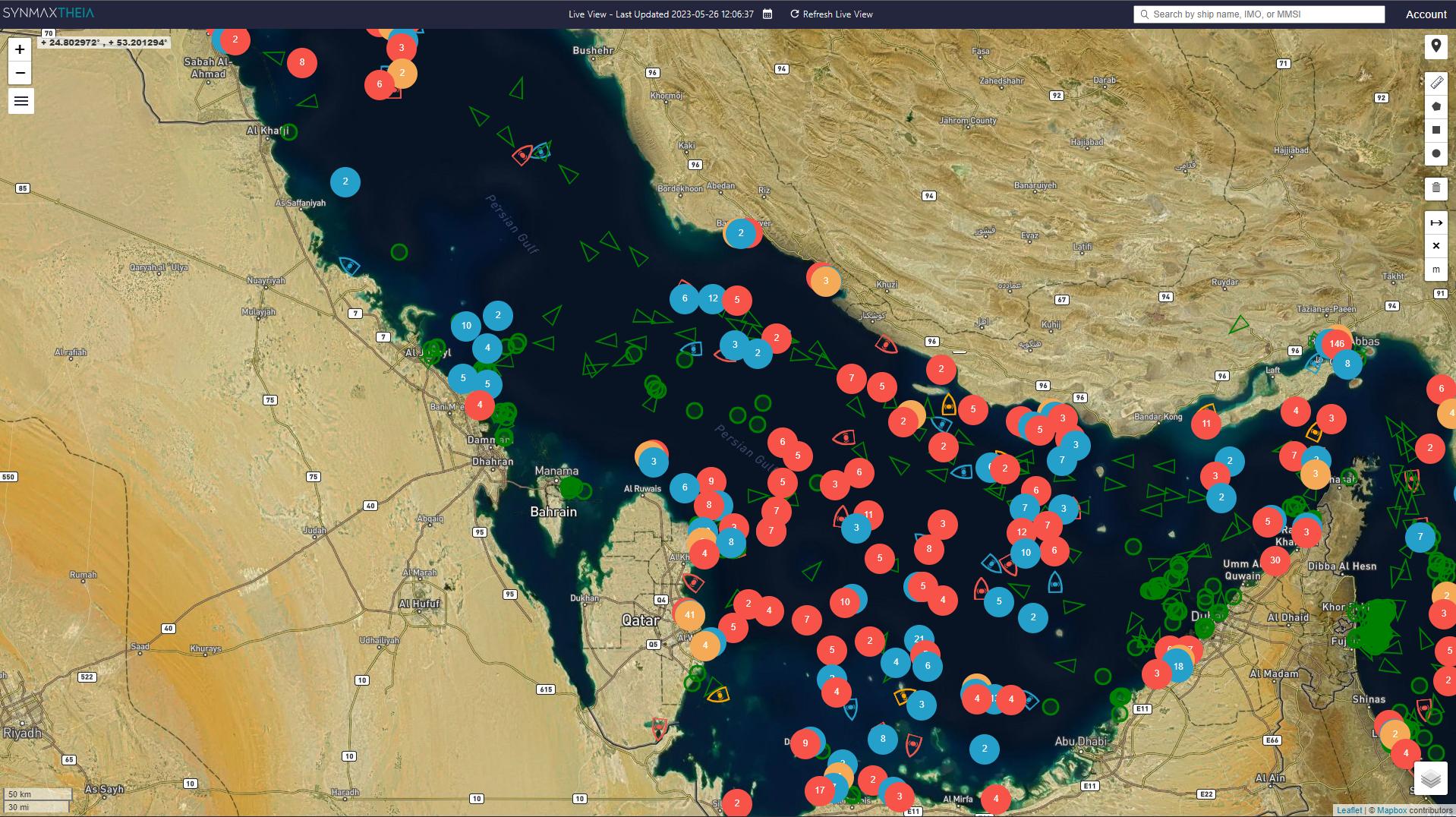
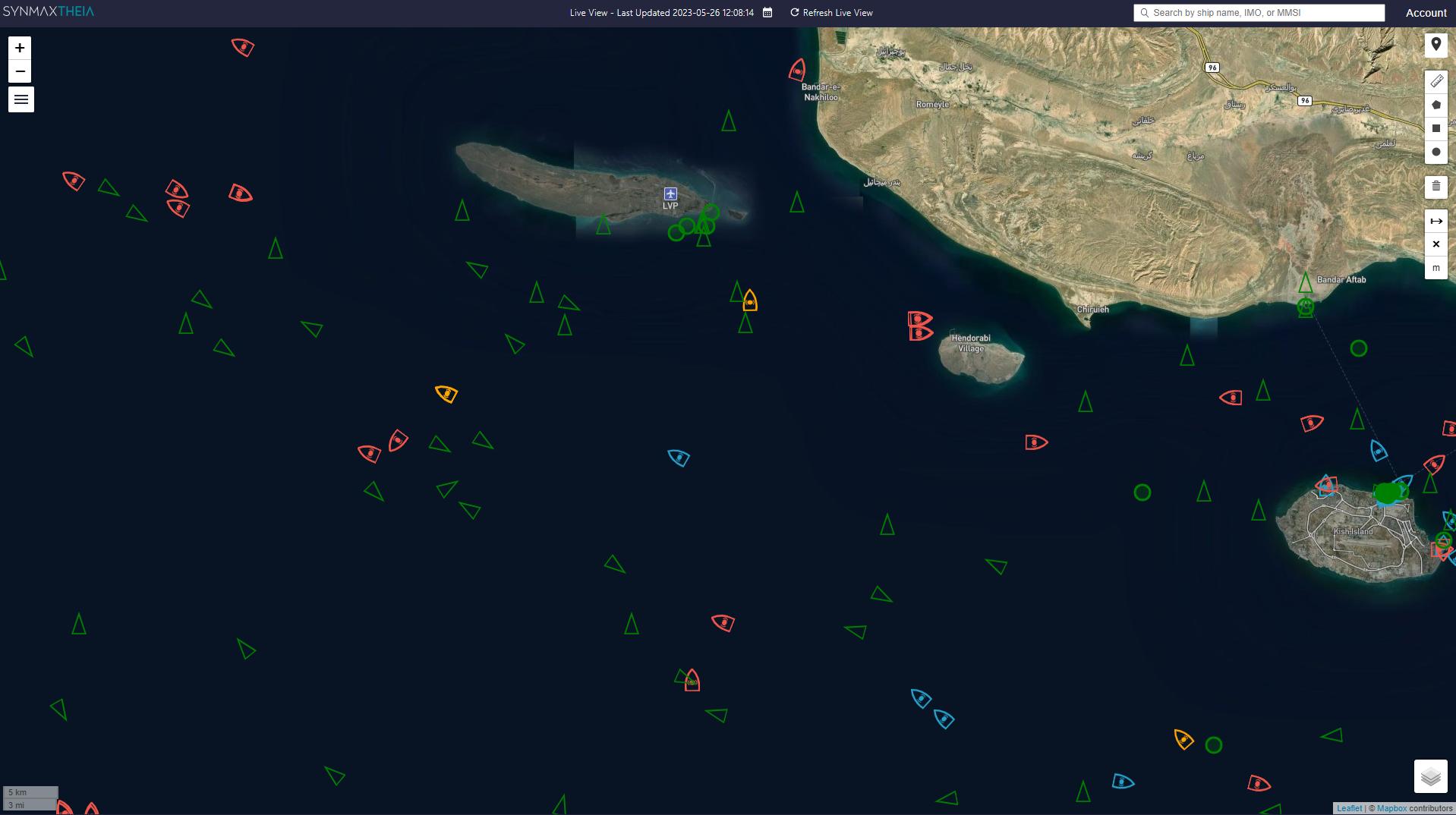
Closer Zoom Level - Individual Light, Dark, and Unattributed vessels are visible.